Item Groups
You can use Group to combine multiple items together, allowing overall translation, arrangement, and alignment based on the overall bounding box, as well as setting properties and applying animations.
Common Methods for Item Groups
The following provides two examples and their explanations:
group = Group(
    Star(), Circle(), RegularPolygon(6),
    color=BLUE,
    fill_alpha=1
)
group.points.arrange(RIGHT, buff=MED_LARGE_BUFF)

self.play(FadeIn(group))
self.play(group(VItem).anim.fill.fade(0.7))
self.play(Rotate(group, TAU), duration=3)
self.play(FadeOut(group, lag_ratio=0.5))
group = Group(
    Star(), Circle(), RegularPolygon(6),
    color=BLUE,
    fill_alpha=1
)
group.points.arrange(RIGHT, buff=MED_LARGE_BUFF)
Here a group is created, containing three child items: Star, Circle, and RegularPolygon, and they are all set to blue with full fill.
And through the arrange() method, the child items in group are arranged sequentially to the right with spacing of MED_LARGE_BUFF.
Hint
arrange() is a quite practical method for arranging items in JAnim. There is also the arrange_in_grid() method that provides grid arrangement functionality, which can be referenced separately.
self.play(group(VItem).anim.fill.fade(0.7))
Fade the fill color overall by 70%.
Since Group does not have complex properties like geometric items VItem, you cannot directly use methods like group.fill.fade(0.7) to fade colors.
But you can use group.astype(VItem).fill.fade(0.7) to treat group as a VItem to use components it doesn’t originally have, which can be abbreviated as
group(VItem).fill.fade(0.7)
Formally speaking, the writing is: group(treat_as_what_item).component.operation.
Since this is used for animation, the form is group(treat_as_what_item).anim.component.operation.
self.play(FadeOut(group, lag_ratio=0.5))
The lag_ratio parameter of the FadeOut animation can control the delay ratio of child items fading out. Default 0 means fading out simultaneously. Here 0.5 is set, meaning the next one starts fading out after the previous one has faded 50%.
group = Group(
    Star(color=GOLD, fill_alpha=0.5),
    Circle(color=RED),
    RegularPolygon(6, color=BLUE, fill_alpha=0.5),
)
group.points.arrange(RIGHT, buff=MED_LARGE_BUFF)

self.play(FadeIn(group))

self.play(Indicate(group))
for sub in group:
    self.play(Indicate(sub))

self.play(group[1].anim.fill.set(alpha=0.5))

self.play(FadeOut(group, lag_ratio=0.5))
group = Group(
    Star(color=GOLD, fill_alpha=0.5),
    Circle(color=RED),
    RegularPolygon(6, color=BLUE, fill_alpha=0.5),
)
Here a group is created containing three child items, each initialized with different colors.
self.play(Indicate(group))
for sub in group:
    self.play(Indicate(sub))
self.play(group[1].anim.fill.set(alpha=0.5))
Access the item at index 1 in group, i.e., the second child item Circle, through group[1], and set its fill opacity to 0.5.
Nesting of Item Groups
Obviously, we can completely use a Group as a child item of another Group (here the author casually created a schematic animation of the HelloJAnimExample code):
txt = Text('self.play(Transform(circle, square))')

shapes = Group(
    Circle(color=BLUE),
    Arrow(color=YELLOW),
    Square(color=GREEN, fill_alpha=0.5)
)
shapes.points.scale(0.5).arrange(RIGHT, buff=MED_LARGE_BUFF)

group = Group(txt, shapes)
group.points.arrange(DOWN, aligned_edge=LEFT)

self.play(Write(group))
self.forward(0.5)
self.play(
    FadeOut(txt),
    FadeOut(shapes[1:]),
    shapes[0].anim.points.scale(2).to_center()
)
self.play(
    Transform(shapes[0], Square(color=GREEN, fill_alpha=0.5))
)
Here a shapes group of “circle pointing to square” is aligned below the text, and then a group is created with the text.
When animating, various animation effects are created through operations on each element and slicing of item groups (e.g., shapes[1:]).
You can continue exploring the usage of item groups and discover more possibilities!
Note
In fact, text items are nested item groups, containing multiple “text line” items, and each “text line” item contains multiple “character” items.
For details, refer to the introduction in text documentation.
Terminology
The nesting of Group forms a hierarchical structure. When discussing item groups, we often involve multiple terms referring to different parts of this hierarchical structure.
Taking a concrete example, for
Group(
    RegularPolygon(6),
    Group(
        Star(),
        Circle()
    ),
    Group(
        Square(),
        Rect(2, 1)
    )
)
the hierarchical structure produced, they have the following relationships:
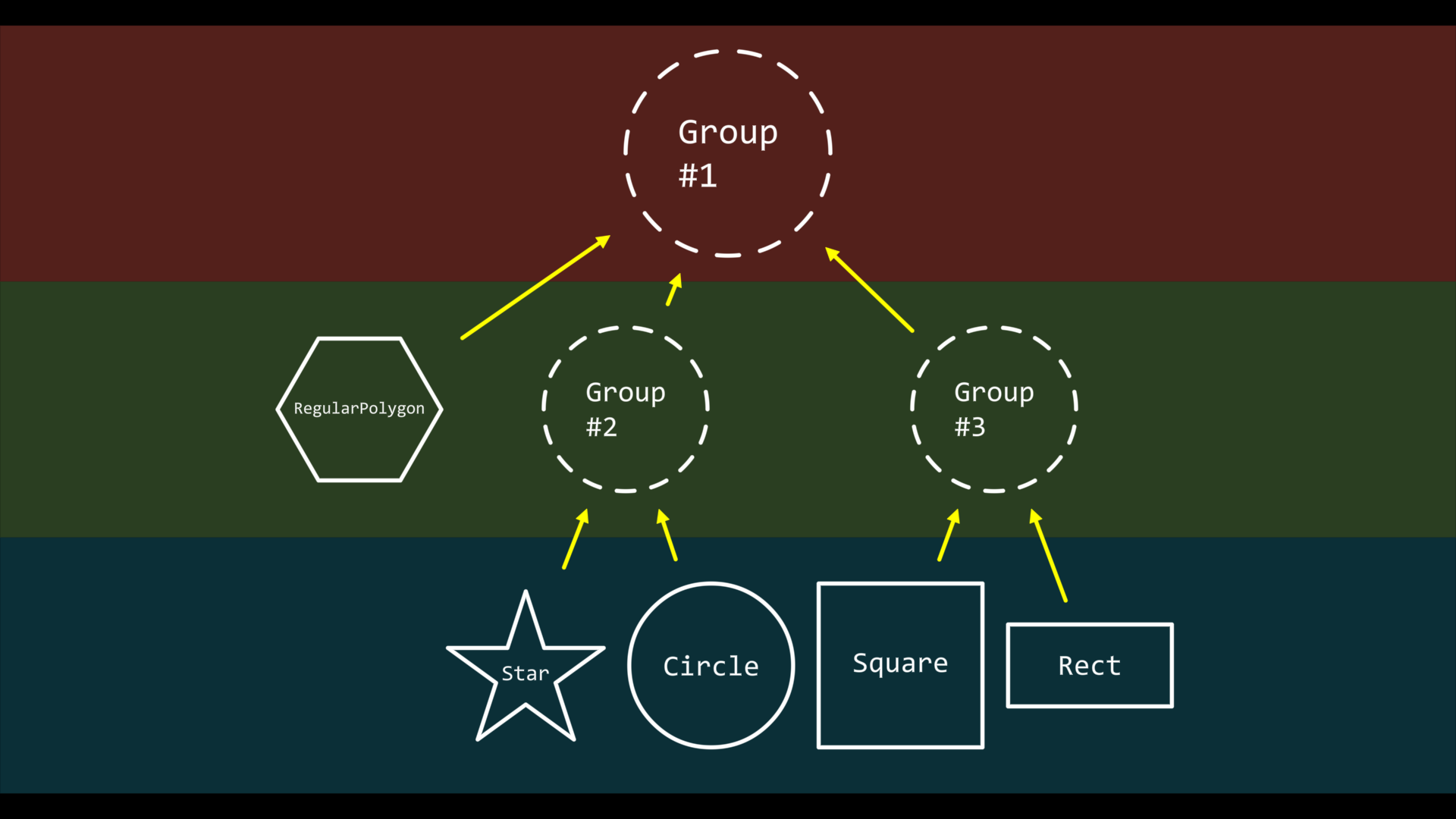
In this hierarchical structure with Group #1 as the root item:
The next layer directly related to it, i.e., the items in the green layer, are called child items.
You can use the form
for sub in group:to iterate through child items.All layers below it, in this example the green and blue layer items, are collectively called descendant items.
You can use the
descendants()method to know all descendant items.
Similar to the concepts of child items and descendant items, going up the hierarchy there are also concepts of parent items and ancestor items:
For the Star item, if we treat it as the root item, then Group #2 is its parent item, and Group #2 and Group #1 are its ancestor items.
Note
From a design perspective, an item may have multiple parent items, but this is not something we need to worry about much in use, because in use we mainly discuss the roles of child items and descendant items in various functions.